
LabVIEW runs on Windows 11, but with a hard version floor: per NI’s compatibility documentation, LabVIEW 2022 Q3 and newer are supported for development and deployment on Windows 11, along with the matching 2022 Q3+ driver stack (NI-DAQmx, NI-VISA, NI MAX, NI Package Manager) and TestStand 2022 Q4 or later. Anything older is officially unsupported, and with Windows 10 past its October 14, 2025 end of support, the clock on unsupported test stations has already run out.
This is the tactical companion to our strategy guide, Upgrading Legacy LabVIEW Systems. That article covers the big decisions: modular subsystem strategy, obsolete hardware, FDA validation, and upgrading without stopping production. This one is the checklist you print out when the decision is made: exactly what to inventory, which versions to target, and in what order to move so the line keeps running.
What NI Officially Supports on Windows 11
Windows 11 is a 64-bit-only operating system, but it still executes 32-bit applications, so both LabVIEW editions are usable once you are on a supported release. The floor for every component, per NI’s published compatibility tables:
| Component | Minimum for Windows 11 | Notes |
|---|---|---|
| LabVIEW | 2022 Q3 | 2021 SP1 and earlier are not supported on Windows 11; 32-bit and 64-bit editions both run from 2022 Q3 on |
| NI-DAQmx | 2022 Q3 | Verify each DAQ device is still supported in the new driver; older cards drop out of DAQmx over time |
| NI-VISA | 2022 Q3 | Re-verify every serial, GPIB, and TCP instrument session after the update |
| NI MAX / Package Manager | 2022 Q3 | Install via NI Package Manager; legacy installers may fail on Windows 11 |
| TestStand | 2022 Q4 | Check deployment license coverage as part of the migration budget |
Compiled from NI’s published compatibility documentation as of July 2026; see NI Product Compatibility for Microsoft Windows 11 at ni.com for the full NI-DAQmx and product tables. Always confirm your specific hardware models against NI’s current tables before committing a plan.
The Five-Phase Migration Checklist
Phase 1: Inventory everything (the audit)
Before touching anything, produce a software and hardware bill of materials for each station: LabVIEW version and bitness, every NI driver and its version, every third-party DLL and instrument driver, DAQ and interface cards (especially serial, GPIB, and anything on a legacy bus), the instruments themselves, and how the application is licensed and deployed. Most migration surprises are things nobody remembered were installed. If the original developer left no documentation, this audit is where you find out; it is the same gap we flagged in our consultant cost guide as the hidden cost of the low bid.
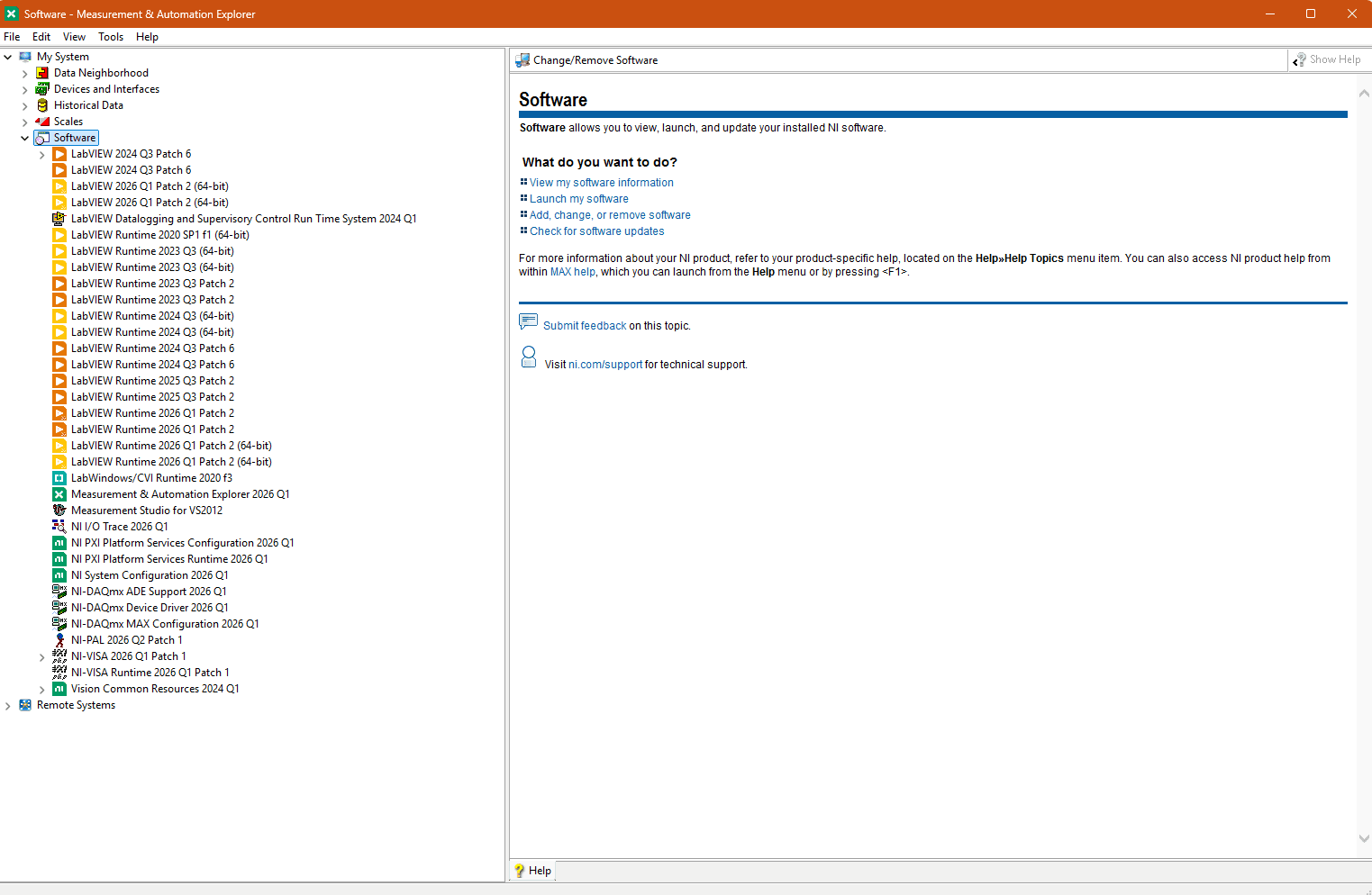
The fastest starting point for the NI side of the inventory is already on the machine: open NI MAX (Measurement & Automation Explorer) and expand the Software section. It lists every installed NI component with its exact version, which is most of your software bill of materials in one screen.
Phase 2: Map every item to a Windows 11 answer
For each line of the inventory, one of four dispositions: compatible as-is (already 2022 Q3+), update (newer version exists and supports your hardware), replace (the DAQ card or interface is no longer supported in the current driver, so select a modern equivalent), or redesign (the subsystem depends on hardware or software with no Windows 11 path). If more than a couple of items land in “redesign,” stop and read the strategy guide first, because you are no longer doing an OS migration; you are doing a modernization, and it should be planned and budgeted as one.
Phase 3: Build clean, not in place
For production stations, build a fresh Windows 11 image on new or re-imaged hardware rather than upgrading in place. Install from your documented bill of materials using NI Package Manager, pin the exact versions, and capture the image. The old disk stays on the shelf untouched: that is your rollback plan, and it costs nothing. In-place upgrades drag a decade of driver debris along and produce the worst kind of failure, the one that shows up three weeks after everyone stopped watching.
Phase 4: Verify at the bench, not on the line
Recompile the application on the new stack and exercise every hardware path against real instruments at the bench: every DAQ task, every serial and GPIB session, every file and database write, timing-critical loops under load, and error paths, not just the happy path. Compare results against recorded baselines from the running system. In regulated environments this is where the scoped IQ/OQ re-verification lives, and it should have been in the budget since phase 1.
Phase 5: Cut over with a way back
Schedule the swap during planned downtime, keep the old machine intact and ready to reconnect, run the first production shifts with heightened monitoring and a named engineer on call, and only decommission the old station after an agreed burn-in period. Multi-station lines migrate one station at a time; the first one is the pathfinder that turns the checklist into a routine.
The Gotchas That Actually Stop Lines
Across the migrations that land on our bench, the failures are rarely LabVIEW itself. They are: serial and GPIB interface drivers with no Windows 11 version (the workhorse cards of the 2000s are the usual suspects), 32-bit third-party DLLs called from 64-bit LabVIEW after an edition switch, discontinued DAQ hardware that current NI-DAQmx no longer enumerates, license surprises (old perpetual licenses that do not cover current versions, or TestStand deployment licenses nobody budgeted), and hardcoded paths and registry assumptions in code written before anyone imagined the machine would change. Every one of these is findable in phase 1, which is the entire argument for doing the audit before quoting the schedule.
Want the audit done for you?
Korpra performs Windows 11 compatibility audits on LabVIEW test systems: a full inventory, a disposition map for every component, and a fixed-fee migration quote you can plan production around. You’ll work with the Certified LabVIEW Architect doing the migration, not a ticket queue.